The official eHomeAffairs login page is at ehome.dha.gov.za/ehomeaffairsv3. You sign in with your profile details and a one-time PIN (OTP) sent to your cellphone. If you are new, you first register a profile with a password and security questions and verify your cellphone number with an OTP. eHomeAffairs is used to apply and pay for Smart ID cards and passports online.
Try this tool before you read on
Appointment Booking Helper
Book, change or cancel.
What Is eHomeAffairs?
eHomeAffairs is the Department of Home Affairs’ online application platform. You can use it to:
- complete a Smart ID card application
- complete a passport application for yourself, or for a minor directly related to you
- upload supporting documents
- pay the application fee online
- book a slot at a Home Affairs office or enabled bank branch for your fingerprints and photo
- print your barcoded confirmation letter
You still have to visit an office or bank branch in person for your biometrics. eHomeAffairs saves you from filling in forms and paying in the queue.
Make Sure You Are on the Real eHomeAffairs Site
Official address: https://ehome.dha.gov.za/ehomeaffairsv3
Check that the address ends in dha.gov.za before you type anything. Be wary of look-alike sites, adverts and social media links that offer to “help” you log in or apply for a fee. Home Affairs does not offer its services through social media.
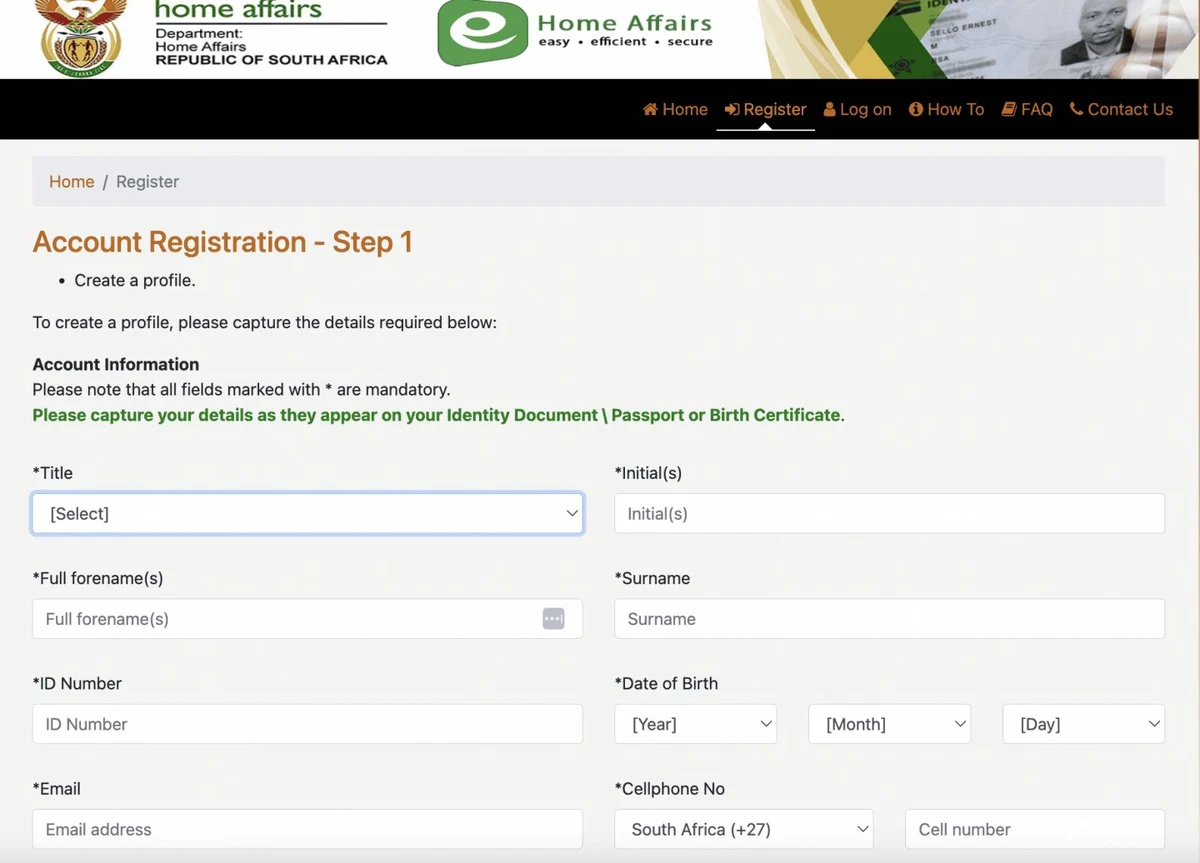
How to Register on eHomeAffairs
- Go to the official eHomeAffairs page and choose the option to register or create a profile.
- Complete your personal details as they appear on your ID.
- Create a secure password. Use a password you do not use anywhere else.
- Answer the security questions. Choose answers you will remember, as they help protect your account.
- Enter the verification OTP sent by SMS to confirm your cellphone number.
Your profile is now active.
How to Log In to eHomeAffairs
- Open the official eHomeAffairs page.
- Enter your login details and password.
- Enter the login OTP sent to your cellphone by SMS.
- You are taken to your profile, where you can start or continue an application.
After You Log In: Applying, Paying and Booking
- Complete the application form. Fields marked in red are mandatory.
- Submit the form.
- Upload supporting documents if the system lists any. Bring the originals with you to your appointment.
- Make the payment. Submitting payment on eHomeAffairs is only an instruction to your bank. You must authorise the payment in your internet banking, and bank verification can take a few minutes.
- Book a slot at a Home Affairs office or an enabled bank branch for your biometrics. See our Home Affairs booking.
- Download and print your confirmation letter. Take the barcoded letter, and your ID book if you have one, to your appointment.
For the documents and eligibility rules for each service, see our guides to the Home Affairs Smart ID and the Home Affairs passport application.
Common eHomeAffairs Login Problems and Fixes
You did not receive the OTP
- Check that the cellphone number on your profile is correct and that your phone has signal.
- Make sure your phone can receive SMS messages and its inbox is not full.
- Wait a few minutes before you request a new OTP, as messages can be delayed.
- Use the OTP straight away. One-time PINs expire.
You forgot your password
Use the account recovery option on the login page if one is shown. You may be asked your security questions. If you cannot recover the account, call the Home Affairs Contact Centre on 0800 60 11 90.
Your payment is not showing
Payments only go through once you authorise them in your internet banking. Log in to your banking app and look for a pending authorisation. If you are unsure how to authorise, ask your bank for its payment authorisation guide.
The site is slow or will not load
eHomeAffairs can be slow at busy times. Try again later, use an up-to-date browser, and clear your browser cache. Do not switch to an unofficial site to get around the problem.
You cannot find a booking slot
Try a different office or enabled bank branch, or check again later as slots are released. You can also check our Home Affairs branch locator for options near you.
Keep Your Account Safe
- Never share your password or OTP with anyone, including people who say they work for Home Affairs or a bank.
- Do not log in on shared or public computers if you can avoid it. If you must, log out when you finish.
- Home Affairs staff do not need your password to help you.
- If you think someone has accessed your profile, change your password and call the contact centre.
Frequently Asked Questions
What is the official eHomeAffairs website?
The official eHomeAffairs address is https://ehome.dha.gov.za/ehomeaffairsv3. It is part of the dha.gov.za government domain.
Can I apply for a Smart ID on eHomeAffairs?
Yes. You complete and pay for the application online, then visit a Home Affairs office or enabled bank branch for your fingerprints and photo.
Can I apply for my child’s passport on eHomeAffairs?
The eHomeAffairs guide says you can complete an application for a minor directly related to you, typically for a passport. The child and the required parents still need to attend in person. See our Home Affairs passport application.
Do I need eHomeAffairs to apply at a bank?
No. Home Affairs says you do not need to log on to eHomeAffairs to apply at participating bank branches. The bank captures your application on the spot.
Why do I need an OTP?
The OTP confirms that you control the cellphone number linked to the profile. You receive one when you register and each time you log in.
Can I use eHomeAffairs for visas?
No. eHomeAffairs is for Smart ID and passport applications. Visa applications follow a different process. See our Home Affairs visa application.